Spotify, YouTube ועוד ב־432Hz באנדרואיד
עם תוסף 432Hz החינמי בדפדפן Lemur, באתרי המוזיקה או ב־432 Bridge.
- Spotify
- YouTube
- YouTube Music
- Apple Music
- SoundCloud
- Tidal
- Deezer
כדי לנגן את Spotify, YouTube ואתרי מוזיקה אחרים ב־432Hz באנדרואיד, התקינו את Lemur Browser מ־Google Play, הוסיפו את תוסף הדפדפן 432Hz החינמי (Ultimate 432Hz Converter) מ־Chrome Web Store, ובחרו 432Hz מתפריט התוספים (Extensions) של Lemur, באתר המוזיקה או ב־432 Bridge בכתובת 432hz.live/discover. ב־Chrome לאנדרואיד אי אפשר להתקין תוספים; ב־Lemur אפשר, ובדקנו בו את התוסף שלנו יחד עם 432 Bridge ועם נגן הווב של Spotify. את האפליקציות של Spotify ו־YouTube עצמן אי אפשר לכוונן מחדש.
עובד עם
כל קישור פותח את החלק על אנדרואיד באותו שירות: מה עובד, ומה עוד לא הצלחנו לבדוק.
מה תצטרכו
- smartphone טלפון אנדרואיד
- travel_explore Lemur Browser, חינמי ב־Google Play, שמתקין תוספים מ־Chrome Web Store
- extension התוסף החינמי Ultimate 432Hz Converter
שלב אחר שלב: Lemur Browser והתוסף
Kiwi Browser, המועדף הוותיק למטרה הזו, הפסיק להתעדכן בינואר 2025 וכבר לא נמצא ב־Google Play. השתמשו ב־Lemur Browser, שבדקנו עם התוסף ועם 432 Bridge.
התקינו את Lemur Browser: Web Extensions מ־Google Play.
פתחו את Lemur והיכנסו ל־Chrome Web Store בכתובת chromewebstore.google.com.
חפשו "Ultimate 432Hz Converter", או פתחו את דף התוסף ישירות דרך הקישור שבהמשך.
הקישו על Add to Chrome (או Install) ואשרו.
ב־Lemur, פתחו את 432hz.live/discover (432 Bridge) או את open.spotify.com, שתי הדרכים שבדקנו, או אתר מוזיקה אחר כמו YouTube או SoundCloud, והפעילו שיר.
פתחו את התפריט של Lemur, אחר כך Extensions ואז Ultimate 432Hz Converter, ובחרו 432Hz. התקנה חדשה מתחילה ב־440Hz, ולכן השלב הזה חשוב.
רוצים את הקצב המקורי? בחרו Pitch במקום Speed בתוסף בזמן שלשונית המוזיקה מתנגנת. Speed, ברירת המחדל, מנגן לאט יותר בכ־1.8%.
432 Bridge: הדרך הקלה ביותר להתחיל
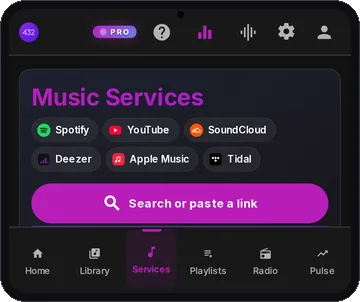
432 Bridge הוא דף שירותי המוזיקה של נגן הווב 432Hz בכתובת 432hz.live/discover. ב־Lemur עם התוסף, חפשו או הדביקו קישור מ־Spotify, YouTube (גם קישורי YouTube Music), SoundCloud, Apple Music, Deezer או Tidal, והוא יתנגן בנגן של השירות עצמו, מכוונן ל־432Hz. בדקנו את זה באנדרואיד ב־Lemur, כולל מצב Pitch.
כשהתוסף מותקן ב־Lemur, פתחו את 432hz.live/discover.
ודאו שבכרטיס מצב התוסף כתוב מחובר, ואז בחרו 432Hz בדף.
חפשו או הדביקו קישור ולחצו על הפעלה. למצב Pitch הדף מציג שלב חד־פעמי: התפריט של Lemur, Extensions, Ultimate 432Hz Converter, בחירה ב־Pitch, ואז חזרה לדף.
infoבטלפון, Spotify מנגן בתוך 432 Bridge תצוגות מקדימות של 30 שניות, בלי קשר לסוג החשבון שלכם; זה הכלל של Spotify לנגן המוטמע שלו. לשירים שלמים של Spotify, פתחו את open.spotify.com בלשונית של Lemur, שבדקנו עם התוסף. ל־YouTube ול־SoundCloud אין מגבלה כזו, ולכן הם השירותים הקלים ביותר להתחיל איתם ב־432 Bridge.
דפדפנים אחרים
גם דפדפני אנדרואיד אחרים מתקינים תוספים מ־Chrome Web Store. לא בדקנו בהם את התוסף שלנו, אז התייחסו אליהם כאל משהו ששווה לנסות.
- help_outline Quetta Browser מצהיר שהוא תומך בתוספים מ־Chrome Web Store ומ־Edge Add-ons. התקינו את התוסף באותה דרך כמו ב־Lemur. Speed אמור לעבוד בכל מקום שבו התוסף פועל; Pitch תלוי בדפדפן.
- help_outline Microsoft Edge Canary קיבל את קוד התוספים של Kiwi, אבל הוא מתקין תוספים לפי מזהה של Edge Add-ons מתוך אפשרויות המפתחים. התוסף שלנו לא נמצא ב־Edge Add-ons, ולכן אנחנו לא ממליצים על הדרך הזו.
טיפים ופתרון תקלות
- check_circle השתמשו באתר, לא באפליקציה. התוסף משפיע רק על שמע שמתנגן בתוך לשונית הדפדפן, אז פתחו את האתר של השירות ב־Lemur, או השתמשו ב־432 Bridge, במקום באפליקציה של Spotify או YouTube.
- check_circle אין כפתור 432 בנגן? בטלפונים, YouTube ו־SoundCloud פותחים אתרים לנייד בלי הכפתור. כווננו מתפריט התוספים (Extensions) של Lemur, או הפעילו את האפשרות "אתר למחשב" (Desktop site).
- check_circle השאירו את הלשונית מנגנת בחזית. חלק מהאתרים משהים את השמע בלשוניות שברקע.
- check_circle לא שומעים הבדל? ודאו שהתוסף פועל ומכוון ל־432Hz ולא ל־440Hz. השינוי עדין, בערך שליש של חצי טון, אז אוזניות עוזרות.
- check_circle עיבוד בזמן אמת צורך קצת יותר סוללה מהשמעה רגילה.
תדרים שאפשר לבחור
432Hz ו־440Hz חינם בלי חשבון. 528Hz (מיושם כ־A=444) חינם עם חשבון בתוסף. שאר התדרים דורשים Pro לתוסף, עם האזנות מקדימות חינמיות של 60 שניות.
שאלות נפוצות
אפשר לנגן את Spotify או YouTube ב־432Hz באנדרואיד?
כן, בדפדפן. התקינו את Lemur Browser, הוסיפו את התוסף החינמי Ultimate 432Hz Converter, ופתחו את האתר של השירות או נגנו אותו ב־432 Bridge בכתובת 432hz.live/discover. ל־Spotify השתמשו בנגן הווב שלו בכתובת open.spotify.com, שבדקנו ב־Lemur; בתוך 432 Bridge בטלפון, Spotify מנגן רק תצוגות מקדימות של 30 שניות. את האפליקציות של Spotify ו־YouTube אי אפשר לכוונן מחדש.
באיזה דפדפן אנדרואיד כדאי להשתמש?
Lemur Browser. הוא מתקין תוספים מ־Chrome Web Store, ובדקנו בו את התוסף, את 432 Bridge ואת נגן הווב של Spotify. ב־Chrome וב־Firefox לאנדרואיד אי אפשר להתקין את התוסף שלנו.
האם Kiwi Browser עדיין זמין?
לא. Kiwi Browser הפסיק להתעדכן בינואר 2025 וכבר לא נמצא ב־Google Play. השתמשו ב־Lemur Browser במקומו.
האם התוסף חינמי?
כן, ל־432Hz. 432Hz ו־440Hz חינם בלי חשבון, וחשבון חינמי מוסיף את 528Hz. Pro מוסיף צלילי סולפג'יו, תדרים מותאמים אישית, את מנוע Studio ואת Audio Lab המלא.
האם הוא מוריד או משנה את המוזיקה שלי?
לא. הוא מכוונן מחדש את השמע בזמן אמת בזמן שהוא מתנגן בלשונית. שום דבר לא מורד, לא מקודד מחדש ולא נשמר.
יש דרך קלה יותר לקבל 432Hz בטלפון?
כן. אפליקציית 432 Player לאנדרואיד מכווננת מחדש את הספרייה שלכם באופן מיידי (וגם לשונית רדיו חינמית עם 30,000+ תחנות), 432 Radio מנגנת תחנות חיות ב־432Hz, ונגן הווב מזרים ב־432Hz בלי להתקין כלום.
432Hz בכל מקום
לאתרי סטרימינג, התוסף ב־Lemur Browser. למוזיקה שלכם ולרדיו, אפליקציית 432 Player, בלי שום הגדרה בדפדפן.